
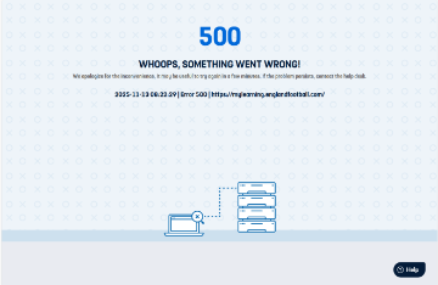
An Error 500 usually indicates a temporary issue with the system or your login session.
Here are some steps you can try to resolve it:
Log out of all other FA accounts before signing in to My Learning (especially if using a shared computer).
Ensure your web browser is up to date (browser-specific steps on how to do this are below)
Try a different web browser than the one where you encountered the issue.
Clear your browser’s cache and browsing data (found in the History section of your browser settings).
Use an Incognito/InPrivate window to access the platform.
Steps to ensure your browser is up to date
Outdated browsers can cause errors when trying to load any webpages. To check and update your browser, follow these browser-specific steps:
Google Chrome: Click the three dots in the top-right corner → Help → About Google Chrome. Chrome will automatically check for updates and prompt you to relaunch if needed.
Microsoft Edge: Click the three dots in the top-right corner → Help and feedback → About Microsoft Edge. Updates will install automatically.
Safari (Mac): Updates are included in macOS updates. Go to System Settings → Software Update to install the latest version.
Keeping your browser updated ensures compatibility and security when accessing all FA systems. If you can’t find your specific browser above, a quick internet search should provide you with your browser-specific steps.


